1 Why Export Matters
The Class Price Calculator stores everything in your browser's localStorage. This is great for privacy (your data never leaves your machine) and convenience (it's there when you come back). But it has a real limitation: localStorage is browser-specific and can be erased.
If you clear your browser data, switch to a different browser, or move to a new computer, your history, settings, and learned defaults are gone. Exporting creates a portable backup file that you can store safely and import anywhere.
It also enables collaboration. If one person enters costs and another person reviews the numbers, export and import are how they share data.
2 Exporting Your Data
Click the "Export" button in the tool header or the "Export JSON" button in the tools row at the bottom of the results panel. The tool downloads a JSON file to your computer with a name like class-pricing-intro_to_pottery-2026-06-15.json.
The export file contains everything:
- All current inputs: class name, sessions, hours, enrollment range, costs, buffers, margin, tiered pricing settings, predicted distribution percentages
- Target price settings: if you've used the reverse calculator
- Class history: every planned and completed class record, including actuals and notes
- Learned defaults: if you've completed 3+ tiered classes and the tool has computed your real tier split
- Version and timestamp: so you know when the export was created and which version of the tool produced it
The file is plain JSON text. If you're curious, you can open it in any text editor and read it. Nothing is encrypted or obfuscated.

3 Importing Data
Click the "Import" button (a file input next to the Export button). Select a previously exported JSON file. The tool reads the file and does two things:
- Restores all inputs: The calculator populates every field with the values from the exported file and re-runs the calculations automatically.
- Merges class history: Records from the imported file are matched against your existing history by ID. New records (ones you don't already have) are added. If you have a "planned" record locally and the imported file has a "completed" version of the same record, the completed version wins and the local copy is upgraded.
The merge behavior is important. It means two team members can work independently, each entering actuals for different classes, and then exchange export files. When each person imports the other's file, both end up with the complete history. No records are lost or duplicated.
If the imported file contains learned defaults (the real tier-split averages computed from completed classes), those are imported as well. The tool then recalculates defaults from the merged history to make sure the numbers reflect all available data.
4 Sharing with Your Team
A common workflow for organizations with multiple people involved in class pricing:
- The education coordinator enters costs and calculates scenarios for each class. They save plans to Class History and export the file.
- They email or share the JSON file with whoever reviews pricing (a co-teacher, program director, or anyone else involved in the decision).
- The recipient imports the file, reviews the numbers, and can adjust or approve pricing.
- After classes run, the coordinator enters actuals and exports again. The recipient imports the updated file, and the completed records merge in.
This works across browsers and computers. One person might use Chrome on a laptop. The other might use Firefox on a desktop. The JSON file bridges the gap.
5 Printing Reports
The calculator includes a purpose-built print layout. Click the "Print" button in the header or use your browser's print function (Ctrl+P or Cmd+P). The tool switches to a clean, printer-friendly layout organized across two pages:
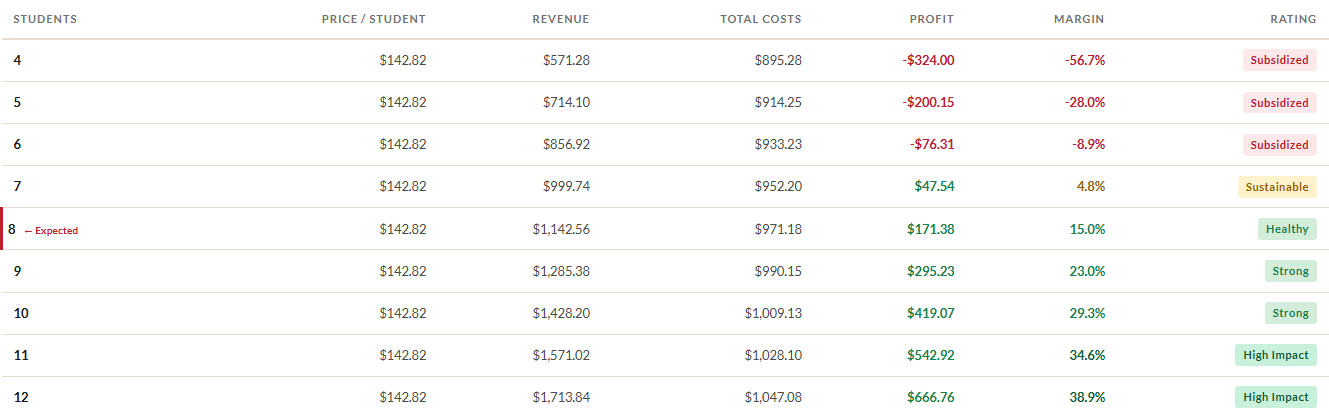
- Page 1: An input summary (class info, costs, buffers, margin), the enrollment scenarios table, and the supported-seat sustainability table (if tiered pricing is enabled).
- Page 2: The target price analysis table (if you've entered a target price), the reverse sustainability table, and the predicted tier distribution table.
To save a PDF instead of printing to paper, choose "Save as PDF" or "Microsoft Print to PDF" in your system's print dialog. This creates a clean, shareable document that looks professional in budget meetings, grant applications, or email attachments.
The print layout includes a header with the class name, the date and time the report was generated, and a small version indicator. Tables and data panels have print-specific versions that render cleanly in black and white.
6 Version Compatibility
If you import a file created with an earlier version of the tool, it will work. The import system handles missing fields gracefully:
- v6.3 files don't have a
classHistoryoruserDefaultsfield. The tool simply treats those as empty, and your existing local history is preserved. All other inputs import normally. - v6.4 files include class history and learned defaults. Everything imports and merges as described above.
- v6.5 files use a single
supportedDiscountfield. On import, the tool maps it to the new array structure (tierDiscounts: [supportedDiscount]) automatically. - v6.6 files use the native array format for tier discounts, tier names, and predicted distribution. All fields import directly. Files with 4-tier data import cleanly into 4-tier mode.
Newer files may have fields that older versions don't recognize, but importing a newer file into an older tool will simply skip the unknown fields. Importing an older file into a newer tool fills in sensible defaults for any missing values.
Best practice: Keep your exported files organized by date. A folder structure like Class Pricing / Exports / 2026-06-15.json makes it easy to find the latest backup and trace the history of your pricing decisions over time.
Ready to price your next class?
Open the Class Price Calculator and put this guide into practice.
Open the Calculator